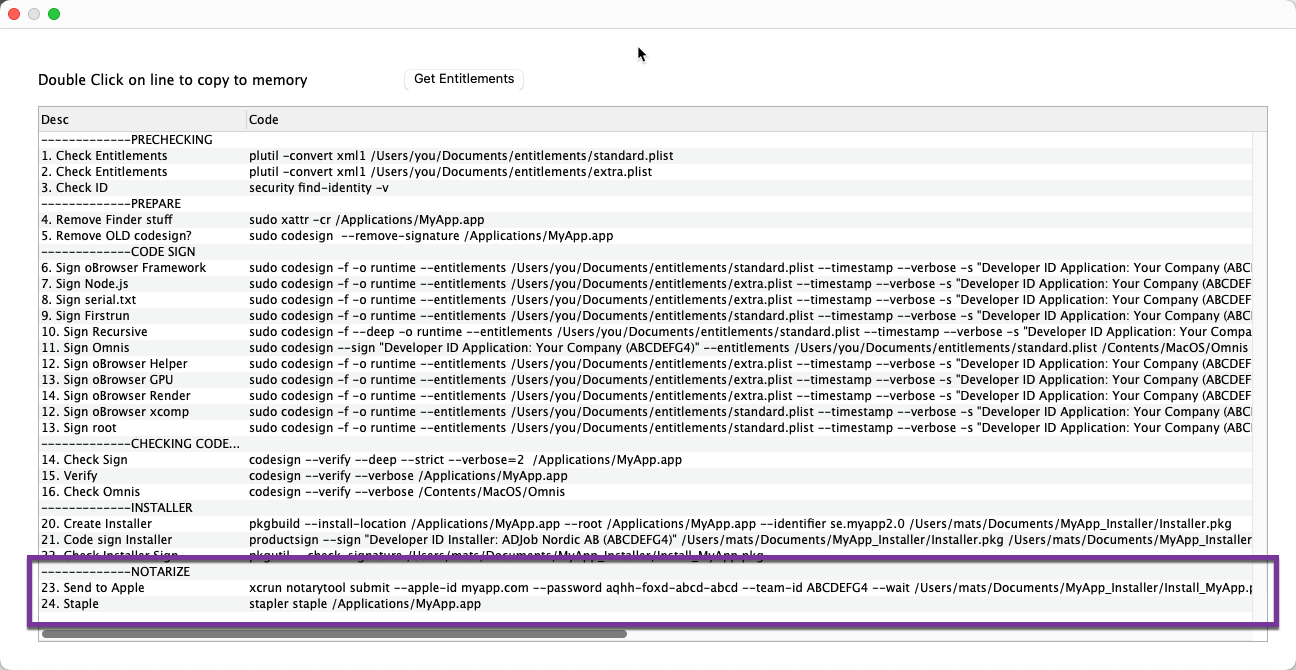
When both your app and the installer is code signed and ready, you have to submit this to Apple in order to be approved. And when you have been approved, you staple your Installer as a verification of successful notarization.
2. Notarize the Installer
Step 23 in CodeSign can take some time as you upload the app + installer to Apple and then wait for approval. May be half an hour.
Conducting pre-submission checks for Installera ADJob 5.3.pkg and initiating connection to the Apple notary service...
Submission ID received
  id: b743b9e7-cd17-474f-832b-9d4ec30de8d2
Upload progress: 100,00 % (330 MB of 330 MB)
Successfully uploaded file
  id: b743b9e7-cd17-474f-832b-9d4ec30de8d2
  path: /Users/mats/Documents/ADJob_Installer/Installera ADJob 5.3.pkg
Waiting for processing to complete.
Current status: Accepted.....................................
Processing complete
id: b743b9e7-cd17-474f-832b-9d4ec30de8d2
status: Accepted
3. Staple the installer
When you notarize your app, it undergoes a verification process by Apple. If everything checks out, you receive a notarization ticket that confirms your app's notarized status. This ticket serves as proof that your app has been reviewed and approved by Apple. The stapling process involves attaching this notarization ticket to your installer. This is the number 24 in the Code Sign library.
3. If the notarizaion is "Invalid"
If the notarization process fails, you can find the error in an Apple log. Send the submission id together with your credentials and you hopfully get a clue what is wrong.
xcrun notarytool log 31159981-2e55-42b9-b398-9cd52631771e --apple-id you@company.com --password aqhh-foxd-abcd-abcd --team-id ABCDEF4
4. Upload the instller for downloading
Upload the notarized and stapled installer to your download site. You are finally done!